
2-minute demo
See how StockLift detects slow-moving inventory, recommends a bestseller pairing, creates a scoped discount, and tracks recovered revenue.
Live demo store with real cart widget
Try the live widget flow
This is a real Shopify dev store with StockLift installed, an active recovery offer, and the cart theme block enabled. No mock data.
Demo store is not ready yet — install StockLift on the dev store, run a scan, activate an offer, and enable the cart widget block. Target shop: nexthop-dev.myshopify.com
~2 min walkthrough: problem → 5 features → live admin panel → cart widget → install CTA.
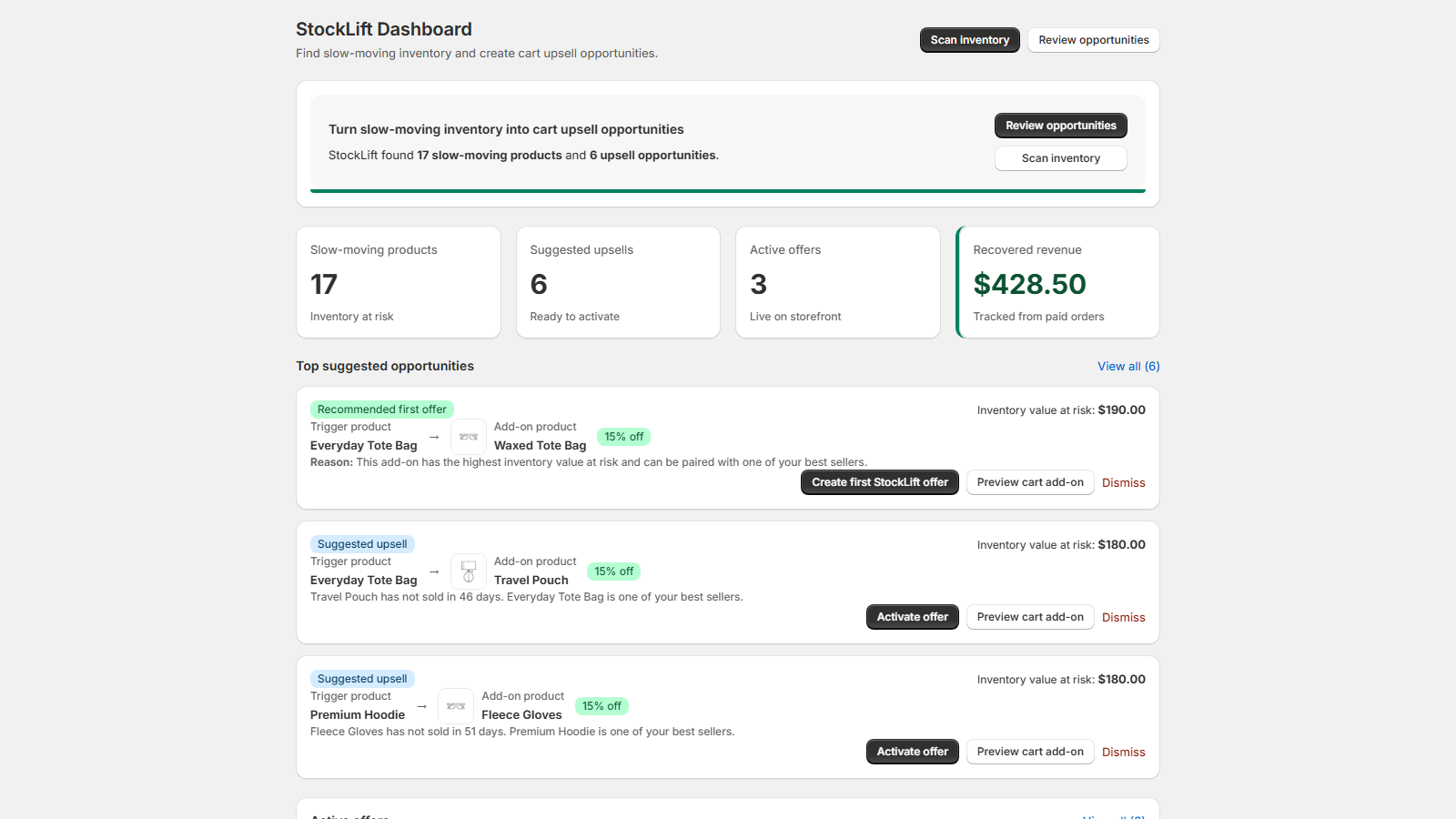
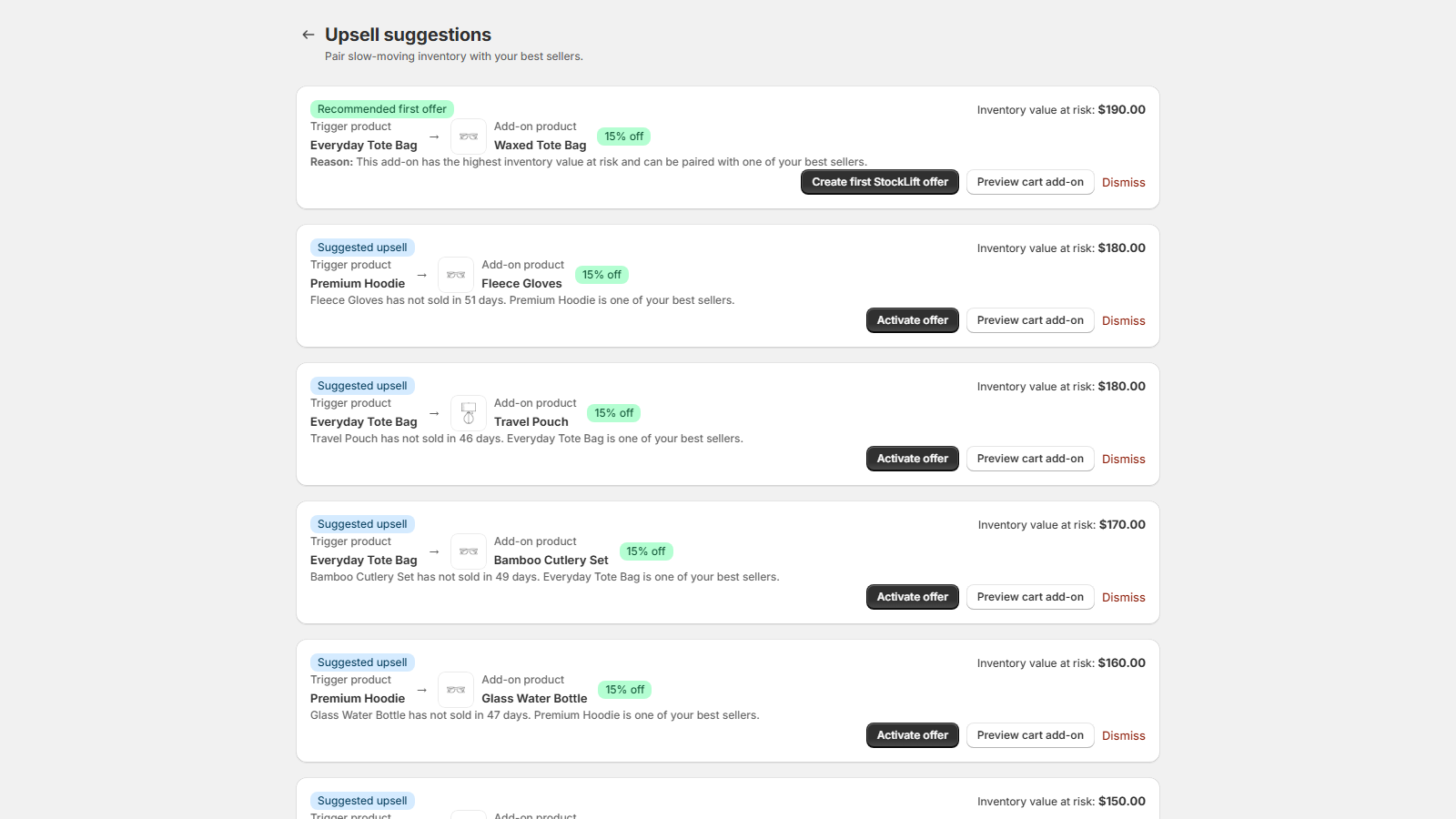
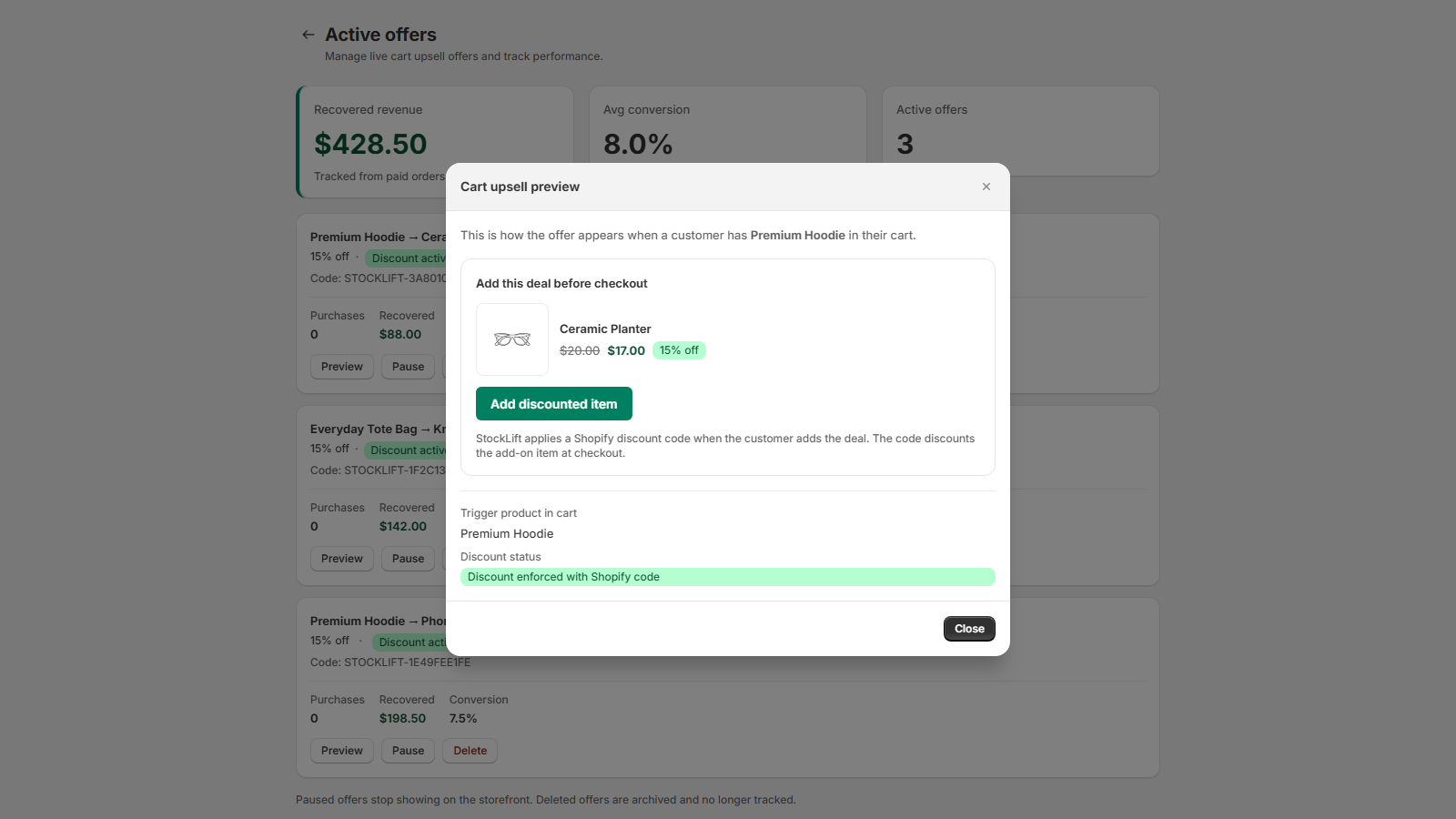
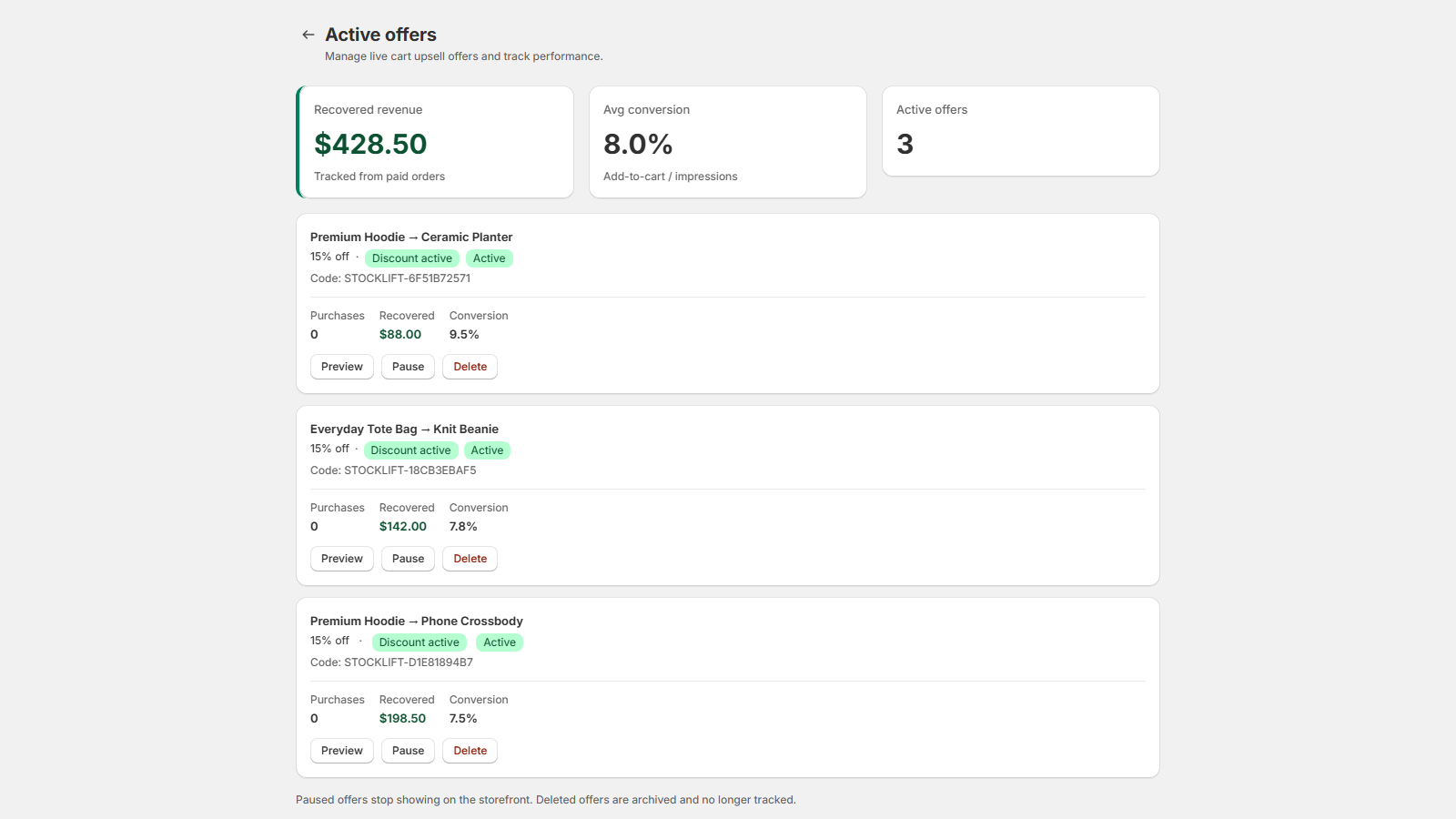
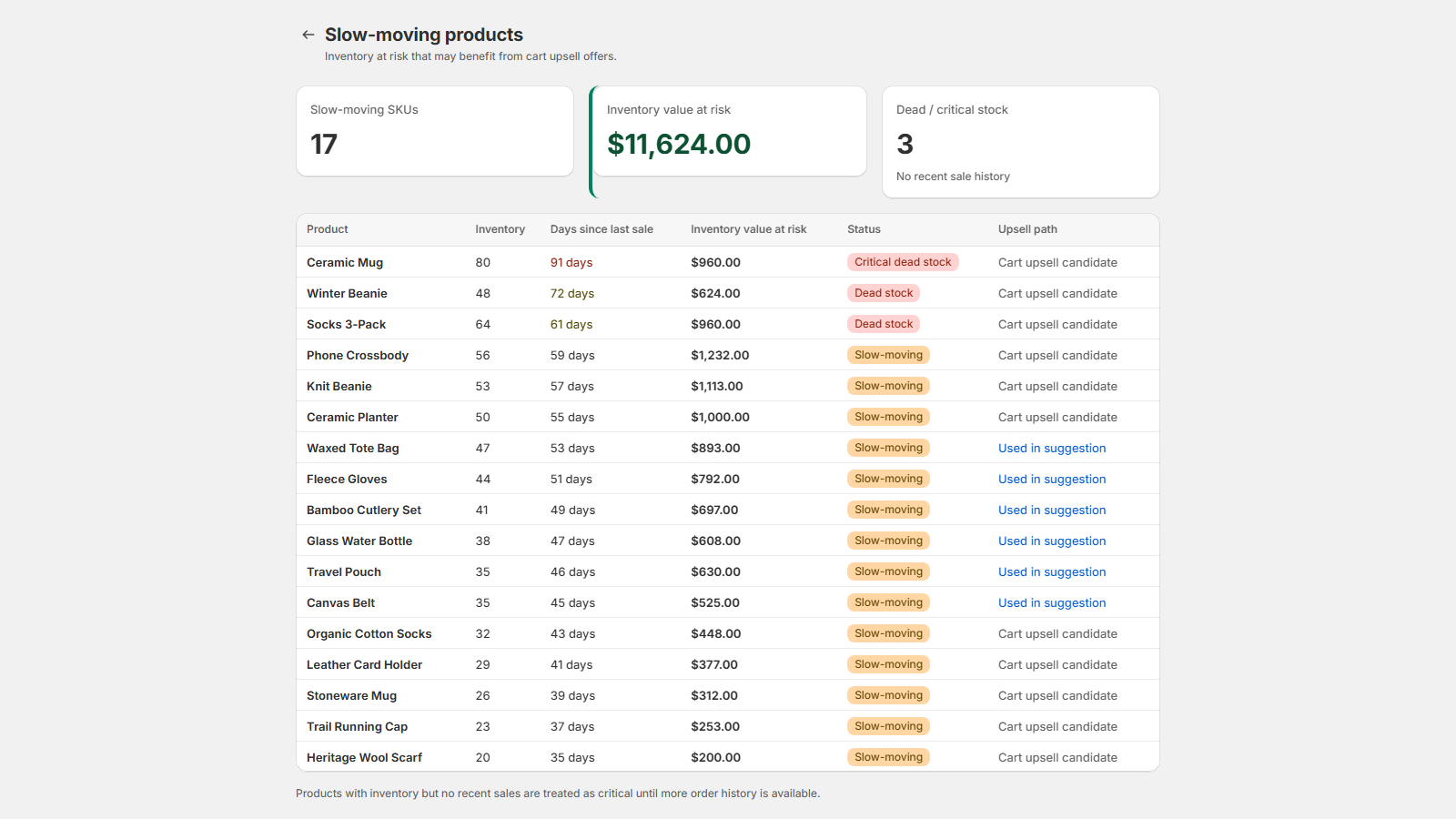
- Scan product and order data to find slow-moving SKUs
- Review bestseller + stale SKU pairing suggestions
- Activate a scoped STOCKLIFT discount for the add-on only
- Preview the cart add-on widget on your storefront
- Track recovered revenue after paid orders
View demo store → · Shopify domain: nexthop-dev.myshopify.com